Showing posts with label Configuration Manager 2012. Show all posts

22 April 2011

Exchange connector in SCCM 2012 B2

Hi,

for mobile device management in ConfigMgr 2012 we need the Exchange connector.
The Exchange connector is transfers the mobile device administration from an Exchange administrator to SCCM.

This gives:
- Inventory and reporting possiblities
- ActiveSync policy
- Remote Wipe capability
- On-premise or Hosted Exchange are supported
- Support for all Exchange ActiveSync (EAS) devices like WP7, Symbian, Android etc.

Let's take a look how to configure this.
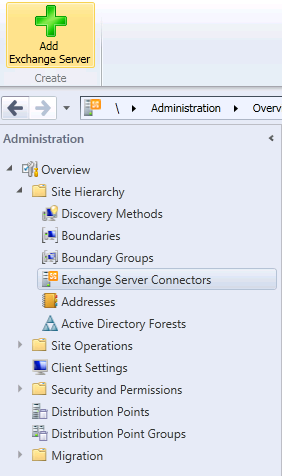
In the Administration section of the Wunderbar we Add Exchange Server:

Exchange Server Connector
 
Here we have the possibility the choose the Exchange environment we like the connect to:

Exchange Environment
 
Select an (service) account which will communicate with the Exchange server. This account needs to be able to access the Exchange environment. With the nice new RBAC features of Exchange you can limit the access.

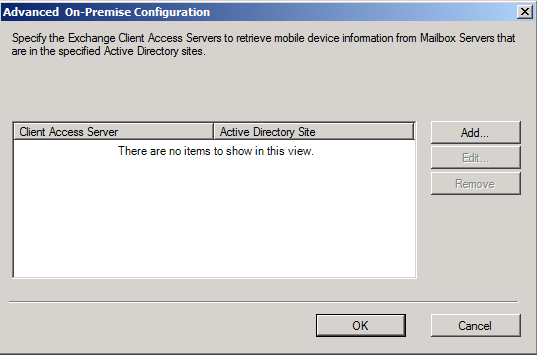
If you have multiple CAS server they can be added or not under the Advanced options.

Exchange Advanded options
 
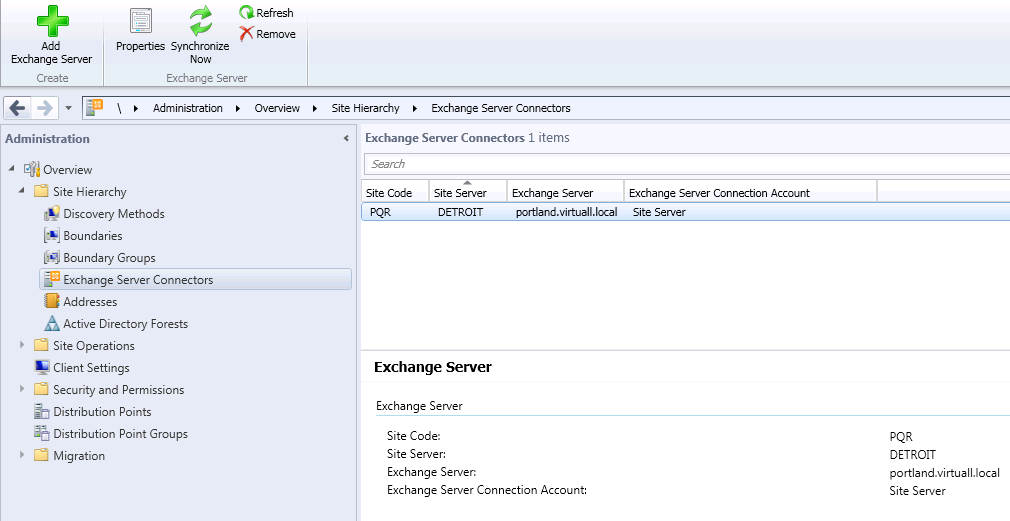
The connector is now ready and can be used to synchronize with Exchange. Use the Synchronize Now button from the Ribbon ;)

Exchange Connector
 
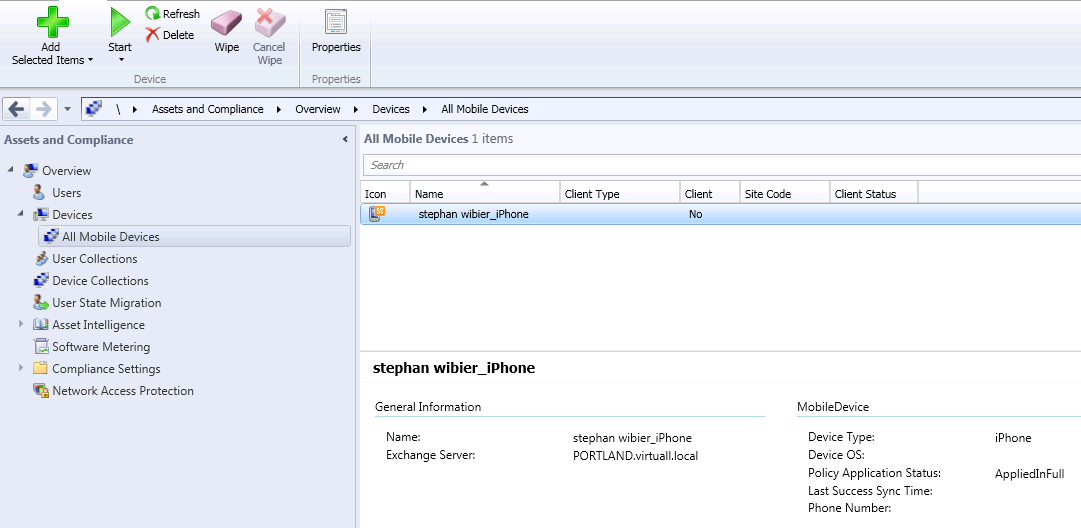
After the sync is completed the resources will be visible in the All Mobile Devices Collection, found under Assets and Compliance.

All Mobile Devices
 
There is no client on my iPhone, so only light management possible. Under Properties the settings are visible.
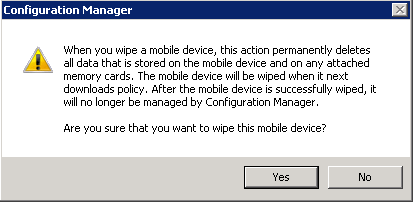
I can do a Remote Wipe, but let not do that now.

Remote Wipe

15 April 2011

Software Center and Application Catalog in SCCM 2012 Beta 2

Hi,
Well oke, the RAP (Run Advertised Program) is gone in ConfigMgr 2012, and we got the Software Center in return. Nice but now what?
For Advertised Programs we now have the: Application Catalog!
The Application Catalog is a web-site where a user can find his/her software. For an administrator it is also possible to authorize software, the user asks if the software can be deployed to his/her workstation. This might come in handy when licensing is an issue, or when a manager wants to be able to monitor application installations.
Oke nice, but how do we set this up.
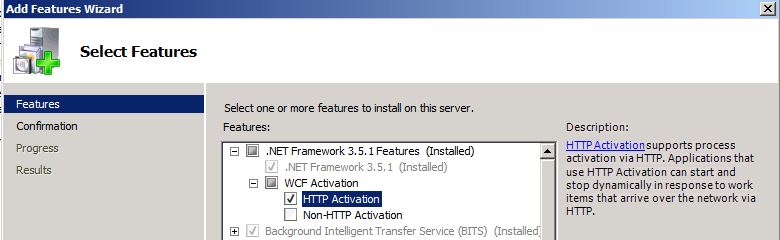
Because ConfigMgr 2012 relies on .NET and uses WCF (Windows Communication Foundation) we need to install the HTTP Activation feature from the WCF Activation:

HTTP Activation
HTTP Activation feature
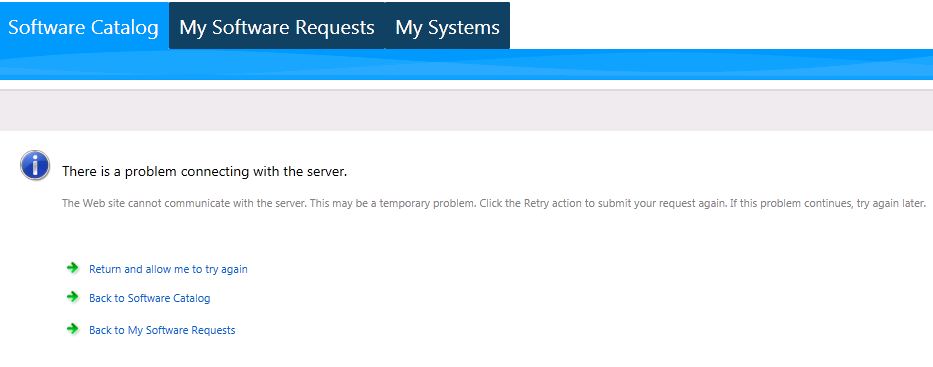
If this is not done it will result in following error:
There is a problem connecting with the server.
The Web site cannot communicate with the server. This may be a temporary problem. Click retry action to submit your request again. If this problem continues, try again later.

Error with Software Catalog
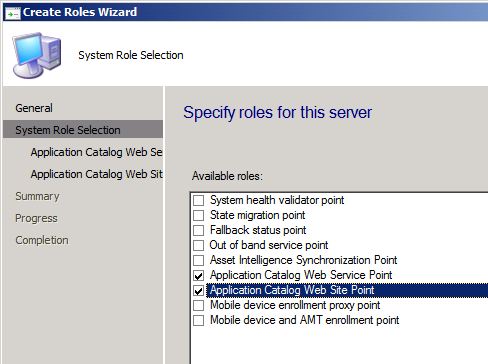
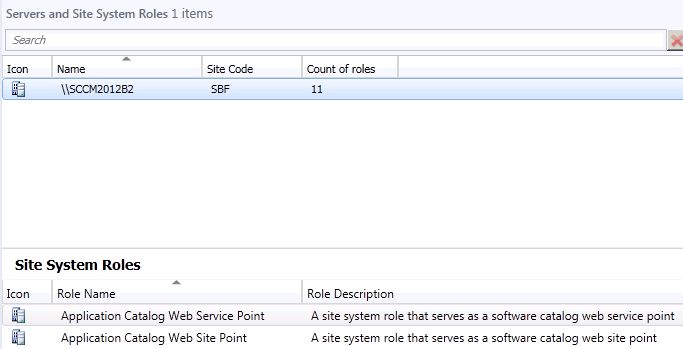
Then we have to install the Application Catalog Web Service Point and Application Catalog Web Site Point role on a SCCM site server.

Application Catalog site roles
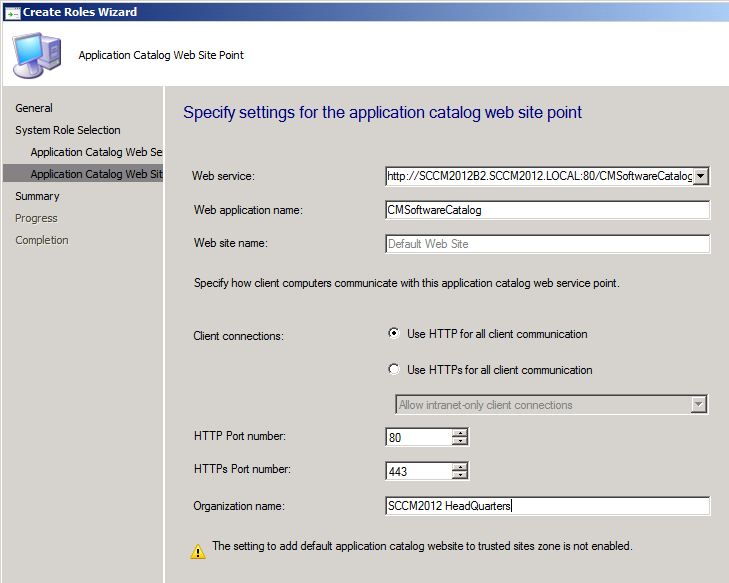
We will use HTTP for Client connections and port 80 for site traffic.

Application Catalog setup

Application Catalog WebSite Setup
That's done:

Role Wizard
Role Wizard

Servers and Site System Roles
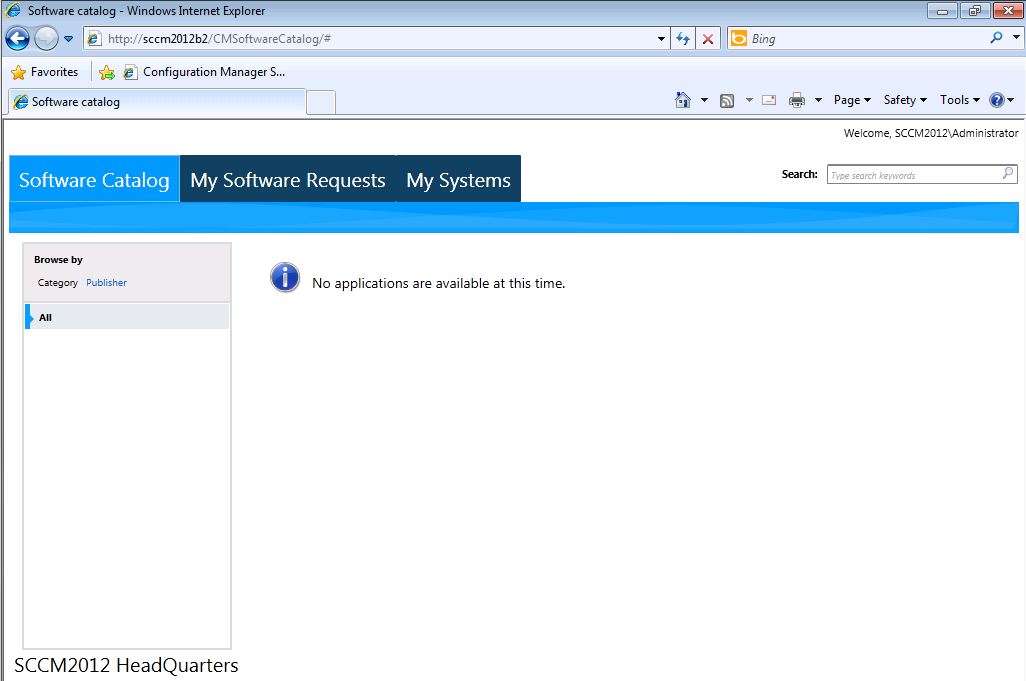
Now we got the Application Catalog Website up and running!

Application Catalog Website
Still empty, but we will fill this up next time!

Deploy Applications in SCCM 2012 Beta 2

Hi,
Let's take a look at application deployment in ConfigMgr 2012 B2.
First of all, things have changed. And for the better.
In SCCM 2007 an user would get his/her software mandatory (pushed) or published via RAP (Run Advertised Programs) or Add/Remove Programs, both found in the Control Panel. For most system administrators and users this was not so nice.
Now we still have the possibility of pushing out software, but the RAP is gone.
Actually it is not gone but replaced with something smarter, the Software Center.
So how dows this work?
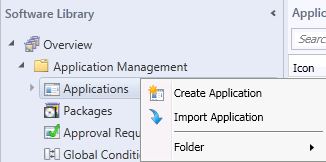
  1. Create Application
    In order to deploy anything we first have to create an application. 

    Create Application SCCM2012B2
    Create Application SCCM2012 Beta 2
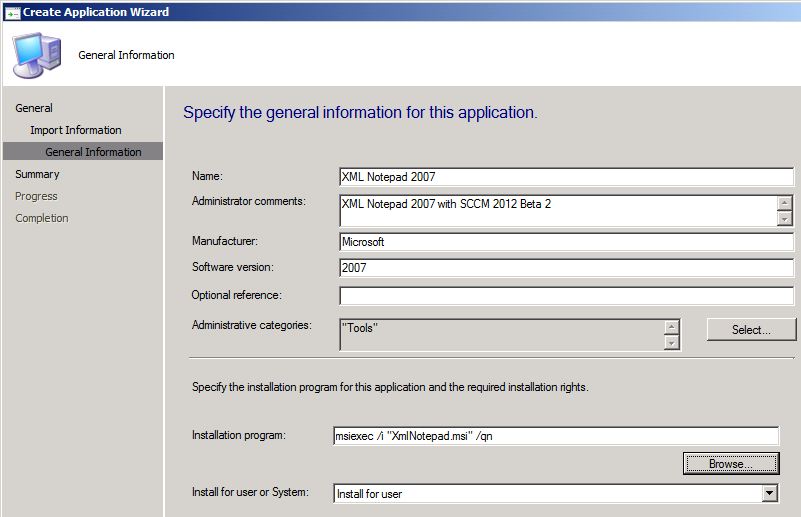
    With the application wizard we have a few options:
    - Windows Installer (Native) --> MSI
    - Microsoft Application Virtualization -- App-V
    - Windows Mobile Cabinet --> Windows Mobile
    - Nokia SIS/JAR --> Symbian sis/jar packages

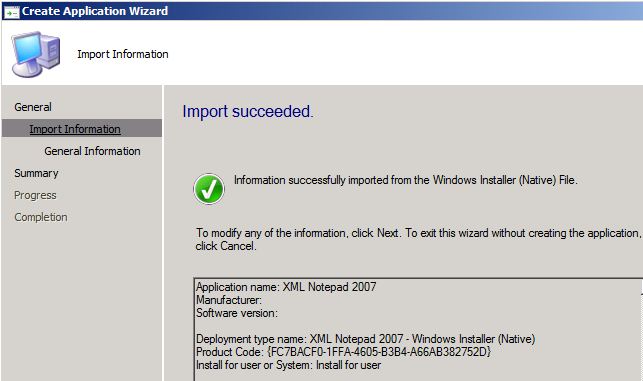
    Application Wizard
    Application Wizard step 1
    The application is imported successfully.

    Application Wizard
    Application Wizard step 2
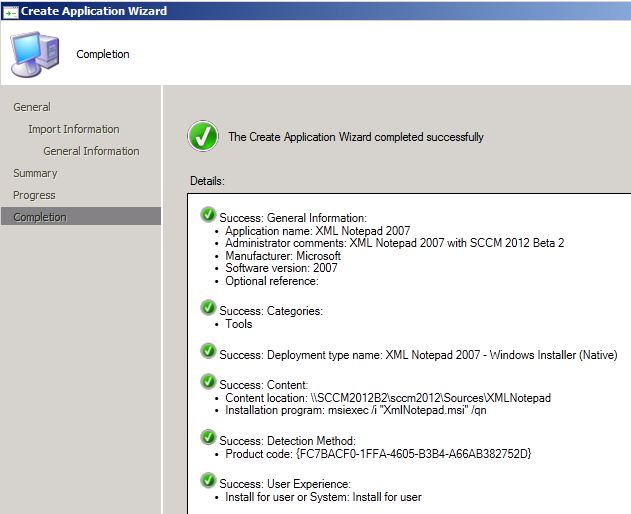
    Continue with the wizard. I have created an Administrative category "Tools", will come in handy later ;-)

    Application Wizard
    Application Wizard step 3
    And there it is, our application:

    Application Wizard
    Application Wizard step 4

  2. Deploy the application.
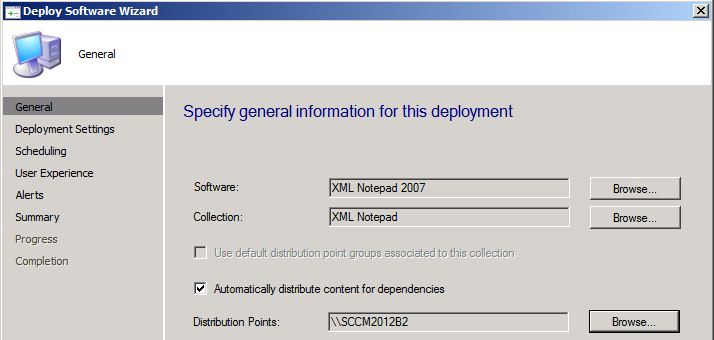
    Let's deploy the application to a User Group. Nice because we set-up Active Directory with the needed Groups and now we want to use them.
    I have created a XMLNotepad collection which it filled with the Security Group XMLNotepad. 

    SCCM2012 Deploy Application
    SCCM2012 Deploy Application

    Deploy Application
    Deploy Application Wizard
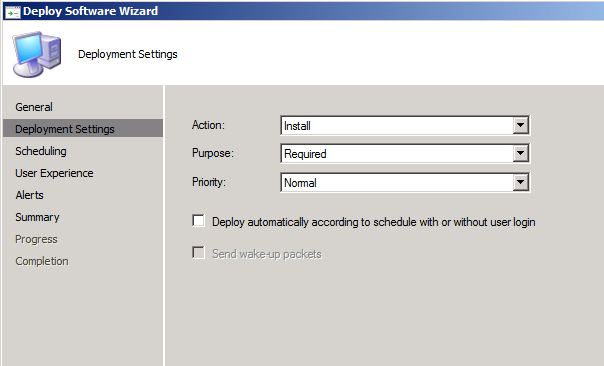
    This is where we set the Required or Available option, and whether to Install or Uninstall the application. Rather cool huh!

    Deploy Application Wizard
    Deploy Application Wizard

  3. See the action.
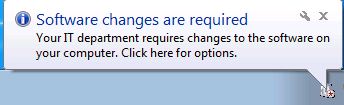
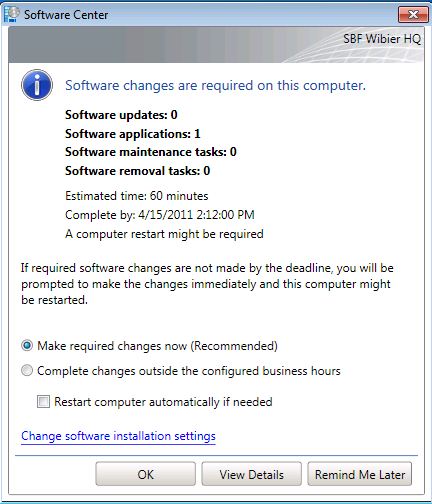
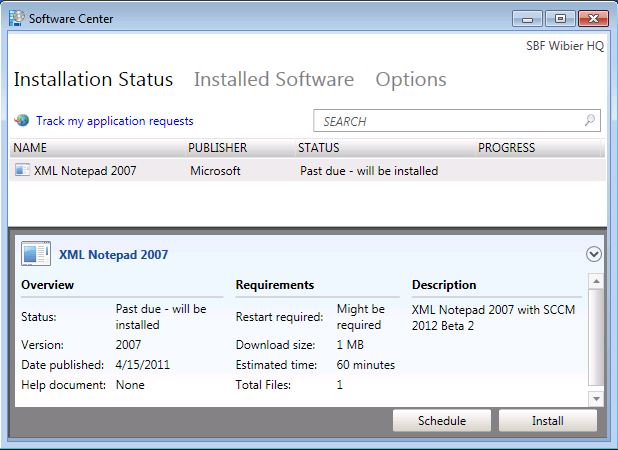
    Now log on to the client and see the Application delivery. 

    Software Installation SCCM2012
    Software Installation SCCM2012

    Software Installation SCCM2012
    Software Installation SCCM2012

    Software Center
    Software Center
    So that's pretty cool and easy!

03 April 2011

Configuration Manager 2012 Beta 2 First Look

Hi,
Microsoft has released Beta 2 of System Center Configuration Manager 2012.
The anticipated release is Q4 of 2011, and this is a first look.
Let's start with: I'm impressed!
Being a Beta means there are a couple of things that needs some attention:
  • The database can only be SQL 2008 SP1 with CU10 or higher (no support for SP2 or R2 yet!)
  • x64 OS (finally ConfigMgr is on the same platform as the rest of the System Center Family)
  • Ow and RAM, it needs a lot! The minimum is 2GB, but bear in mind 'the minimum'. Running this one in a lab environment with SQL on the same machine, go for 4-6GB.
Then there are the Prerequisites:
  • .NET 3.5.1
  • .NET 4.0
  • RDC (Remote Differential Compression)
  • BITS (Background Intelligence Transfer Service)
  • IIS Role Service --> IIS 6 WMI Compability
And WSUS 3.0 SP1 if you want to manage Software Updates with SCCM 2012 (and you want that, don't you?).
One thing that directly caught my attention, no more need for WebDAV, nice.
After the installation fire up the Console:

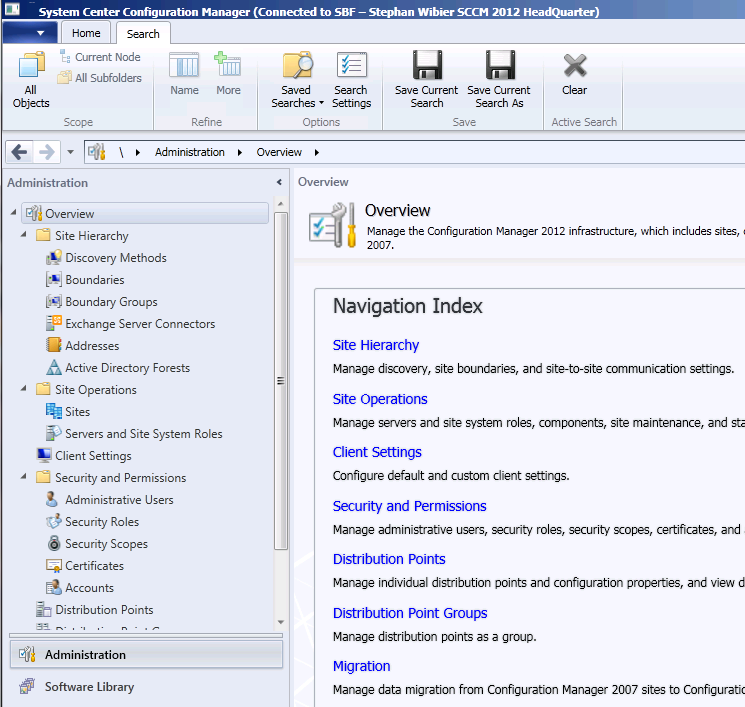
SCCM 2012 UI
SCCM 2012 UI
Wow!

SCCM 2012 Ribbon
SCCM 2012 Ribbon
First thing that is cool, the ribbon is fully integrated throughout the product. It takes some time to get used to it, but it saves a lot of 'right-clicks'. Very handy.
So now what?
Clicking through the console you can see the shift towards User Centric Management. This means putting the User first then the Systems. And that's eventually what it is all about.
We need to support Users in their jobs, providing them with the right tools to do their work.
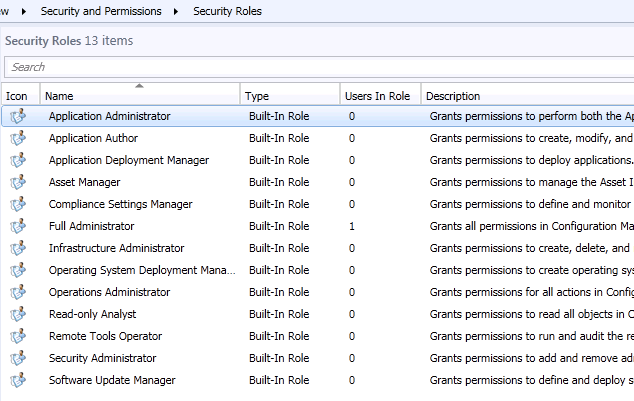
Also there is Role-Based Security, no more full console with no rights. If you are assigned a role, you will just see what you need to see, uh cool and handy!

RBAC
Role-Based Access Control (RBAC)
Efficient Application Management.
Sounds cool, but what is it? It means that a single application can now be deployed with multiple deployment methods!
So let's say you have an application XYZ. You want to deploy this application to your Baseline desktop PC's as a native application,  stream it as an App-v program to your Laptops and make it available as an Remote Desktop Application when an user logs on to a server. All from 1 application, nice!
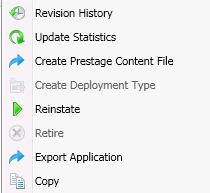
To uninstall applications SCCM 2012 now uses 'retirement', the application can also be 'reinstated'.

Retired Application
Retired Application
Reporting.
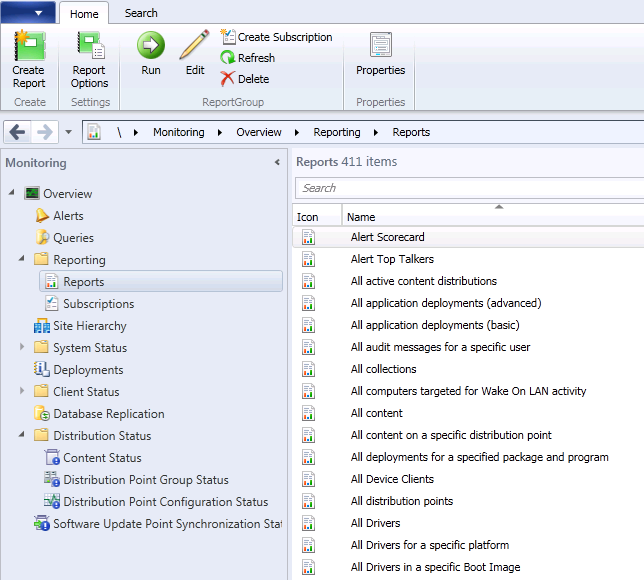
Reporting is taken out of SCCM 2012 and is done by SQL 2008 by means of Reporting Services. This is how it should be. Of course in SCCM 2007 it was also possible, but in SCCM 2012 the Reporting Point does no longer exists.
And, of course, there are standard more reports ;-)
(411 in SCCM 2012 B2 to 389 in SCCM2007R3)

Reports
This was the very first peek in SCCM 2012 B2, more to come!