Showing posts with label Software Center. Show all posts

15 April 2011

Request Applications in SCCM 2012 Beta 2

Hi,
in the last post (here) we set up the Application Catalog Website.
We  made an application that needed administrator approval.
How does this look like?
First the user sends a request.

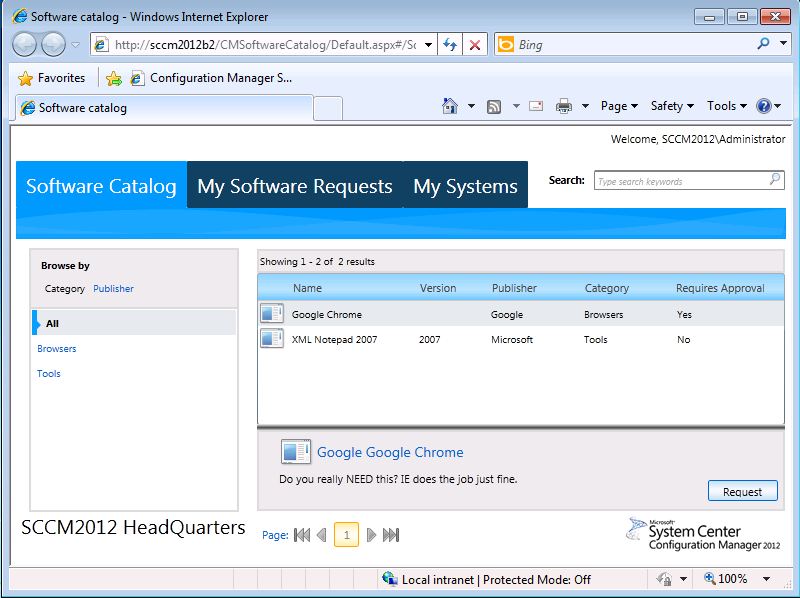
Application Catalog Website

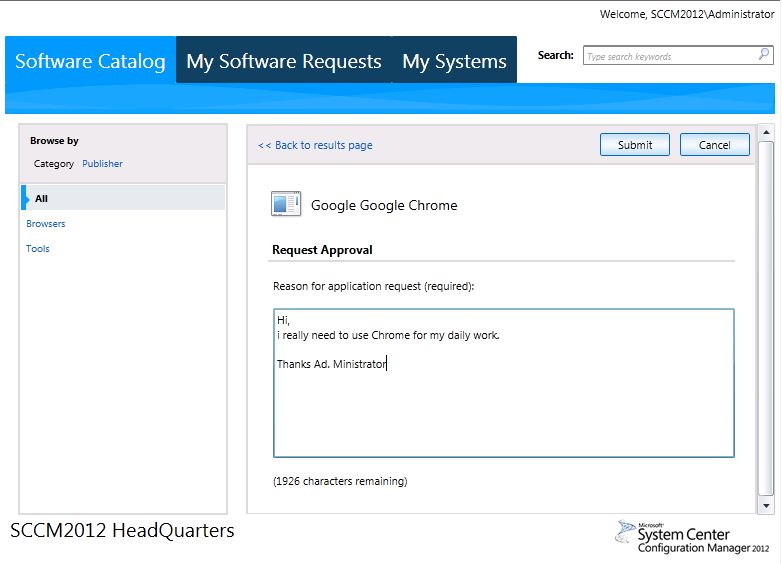
Software Request
Software Request

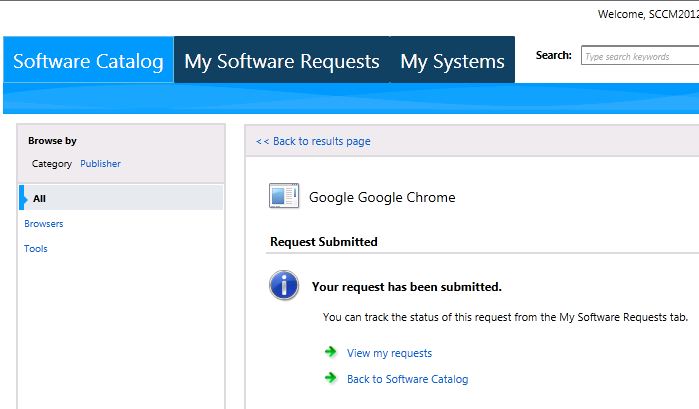
Software Request submitted
Oke the Request was submitted.

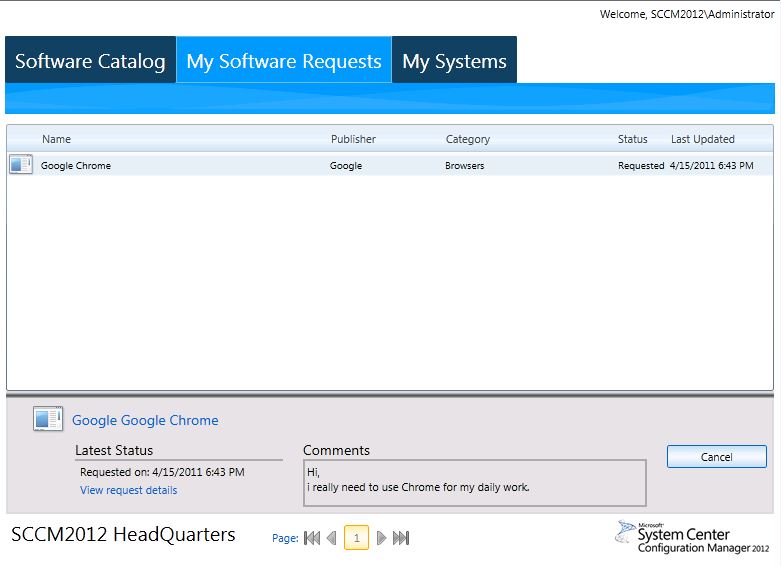
Software Request pending
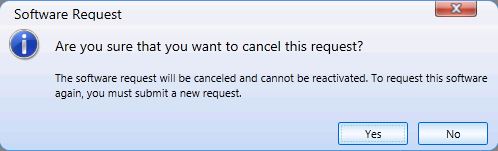
The user has the ability to cancel the request.

Software request cancel
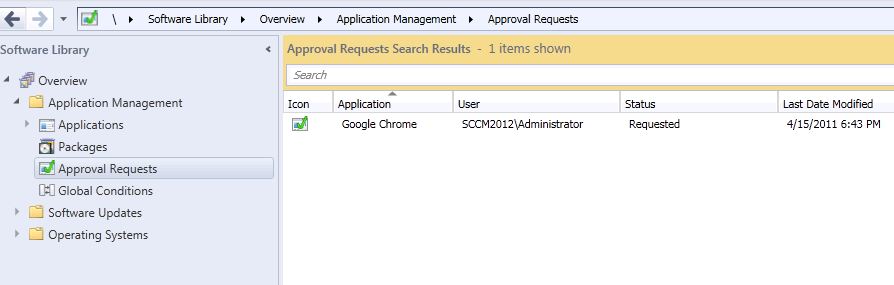
As shown in the SCCM 2012 console there is a software request.

SCCM 2012 Software request
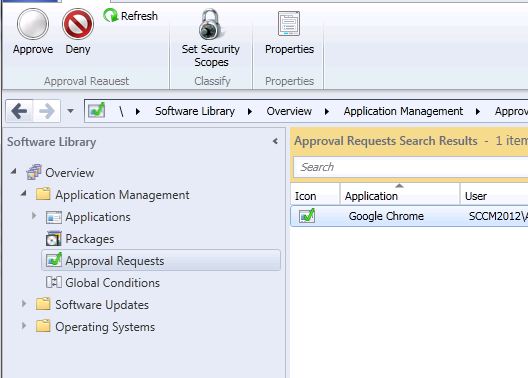
Now the administrator can Approve or Deny the Request.

Approve or Deny Request
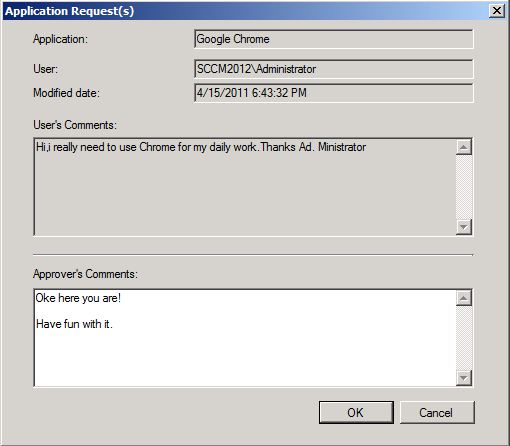
You can give a reason or comment.

Request SCCM 2012 Beta 2
And the request is Approved. The user can now install the requested software.

Granted request ConfigMgr 2012
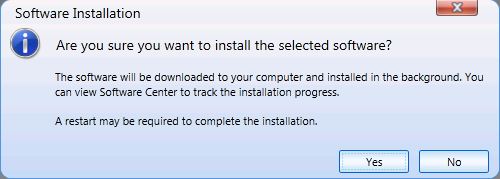
User clicks install and needs to confirm.

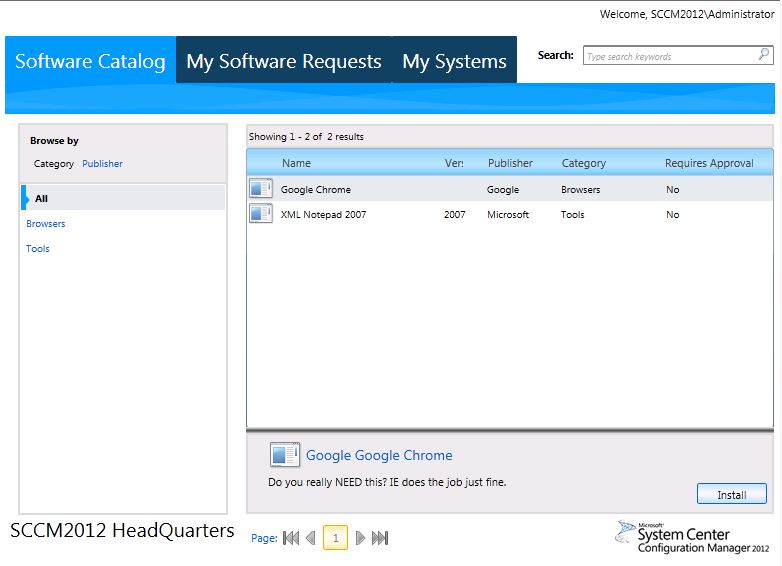
Software installation by user SCCM2012
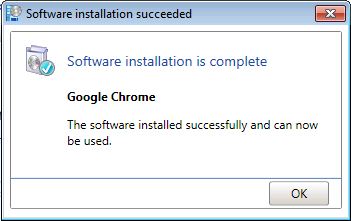
And here it is!

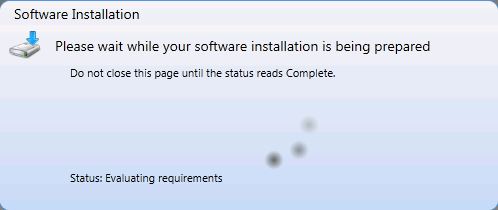
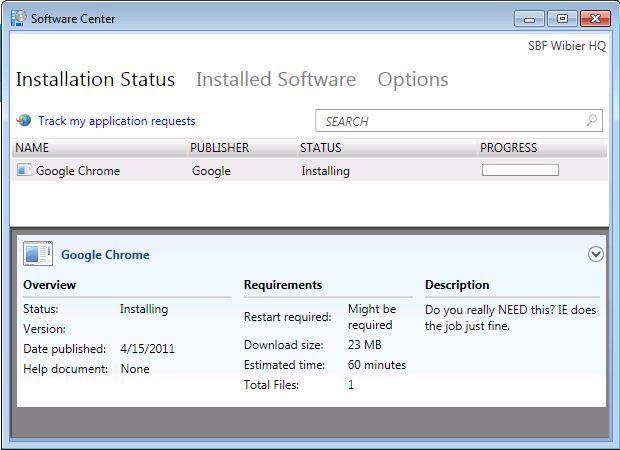
Software installation

Software installation - part 2

Software installation - part 3

Software installation - here it is!
That is well done by our friends in Redmond!


Using Application Catalog in SCCM 2012 Beta 2

Hi,
in the last post (here) we set up the Application Catalog Website. But it is still empty.
As stated before we can now provide software to users, and be able to approve requests.
Let's deploy some applications.
- XML Notepad, free to use for users;
- Google Chrome, needs approval from a manager.
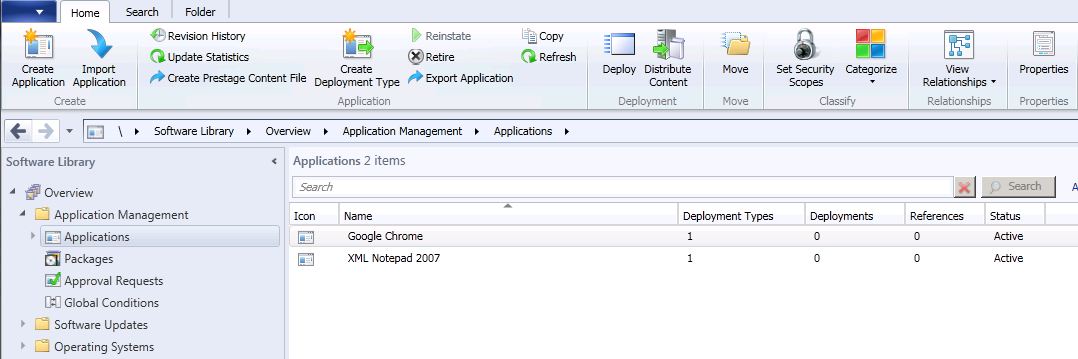
I have setup the 2 applications.

Application Catalog in SCCM2012
Now we need to deploy them.

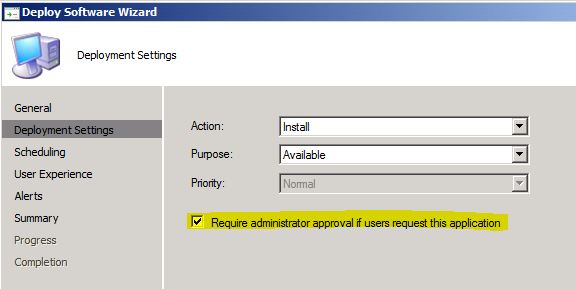
Application Deployment - Request needed

Application Deployment - Request needed
That's one:


Application Deployment - Request needed
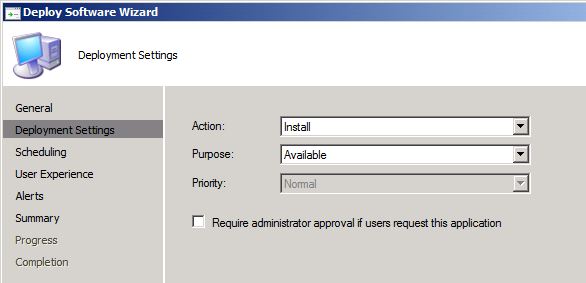
Now the other. No need for administrator approval!

Application Deployment - No Request needed
That's two ;-)

Application Deployment - No Request needed
Oke so the Applications have been added, how does this look like from a user perspective?
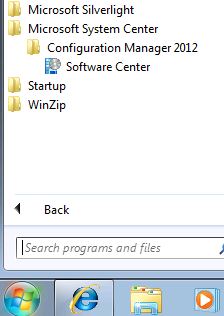
The user goes to the Software Center.

SCCM2012 client start menu

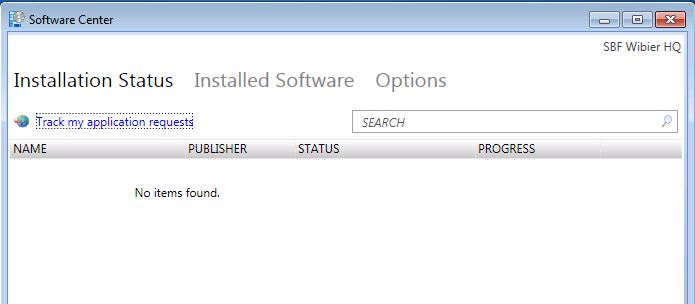
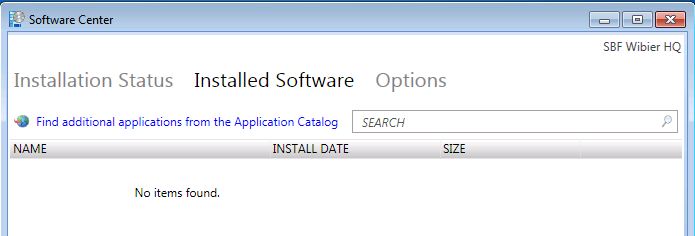
Software Center
Software Center

Software Center
Software Center
All empty?! But wait there is an option 'Track my application requests' or 'Find additional applications from the Application Catalog'.

Application Catalog Website
Now i can request Google Chrome or install XML Notepad. Nice :-)


Software Center and Application Catalog in SCCM 2012 Beta 2

Hi,
Well oke, the RAP (Run Advertised Program) is gone in ConfigMgr 2012, and we got the Software Center in return. Nice but now what?
For Advertised Programs we now have the: Application Catalog!
The Application Catalog is a web-site where a user can find his/her software. For an administrator it is also possible to authorize software, the user asks if the software can be deployed to his/her workstation. This might come in handy when licensing is an issue, or when a manager wants to be able to monitor application installations.
Oke nice, but how do we set this up.
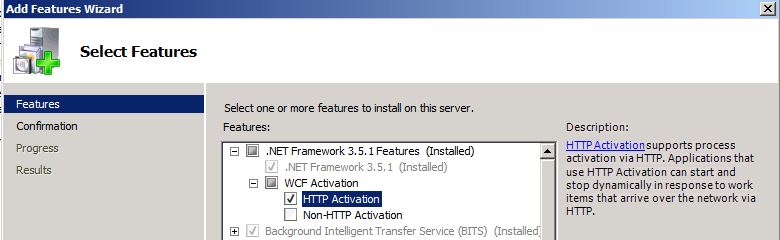
Because ConfigMgr 2012 relies on .NET and uses WCF (Windows Communication Foundation) we need to install the HTTP Activation feature from the WCF Activation:

HTTP Activation
HTTP Activation feature
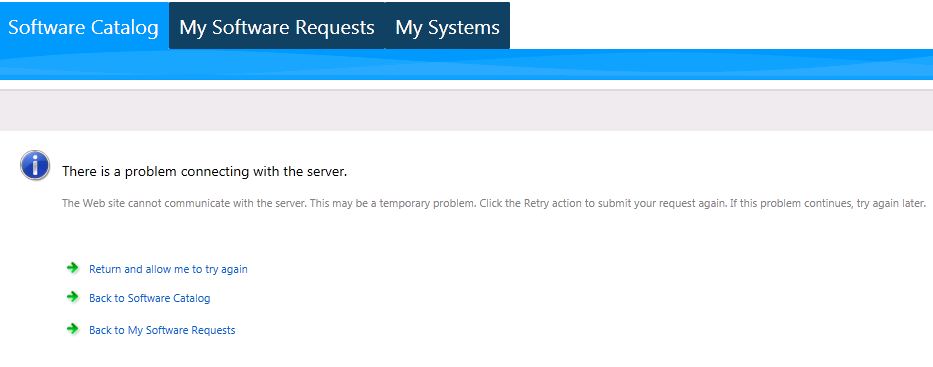
If this is not done it will result in following error:
There is a problem connecting with the server.
The Web site cannot communicate with the server. This may be a temporary problem. Click retry action to submit your request again. If this problem continues, try again later.

Error with Software Catalog
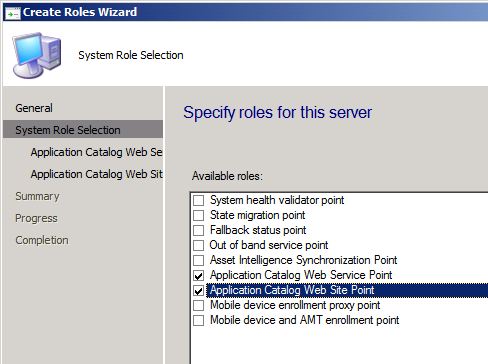
Then we have to install the Application Catalog Web Service Point and Application Catalog Web Site Point role on a SCCM site server.

Application Catalog site roles
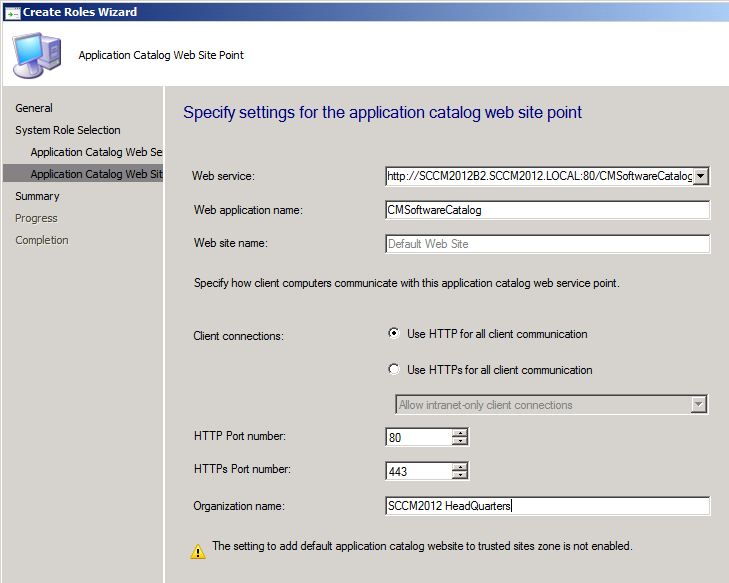
We will use HTTP for Client connections and port 80 for site traffic.

Application Catalog setup

Application Catalog WebSite Setup
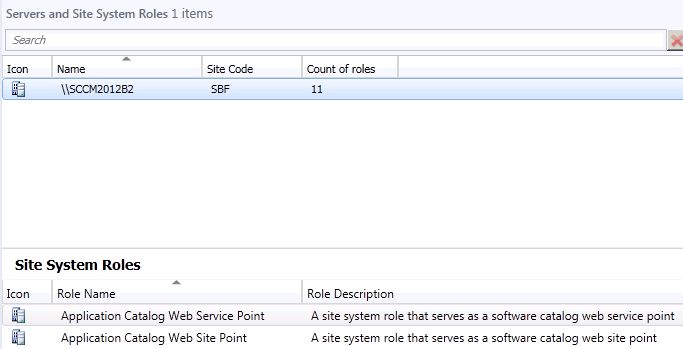
That's done:

Role Wizard
Role Wizard

Servers and Site System Roles
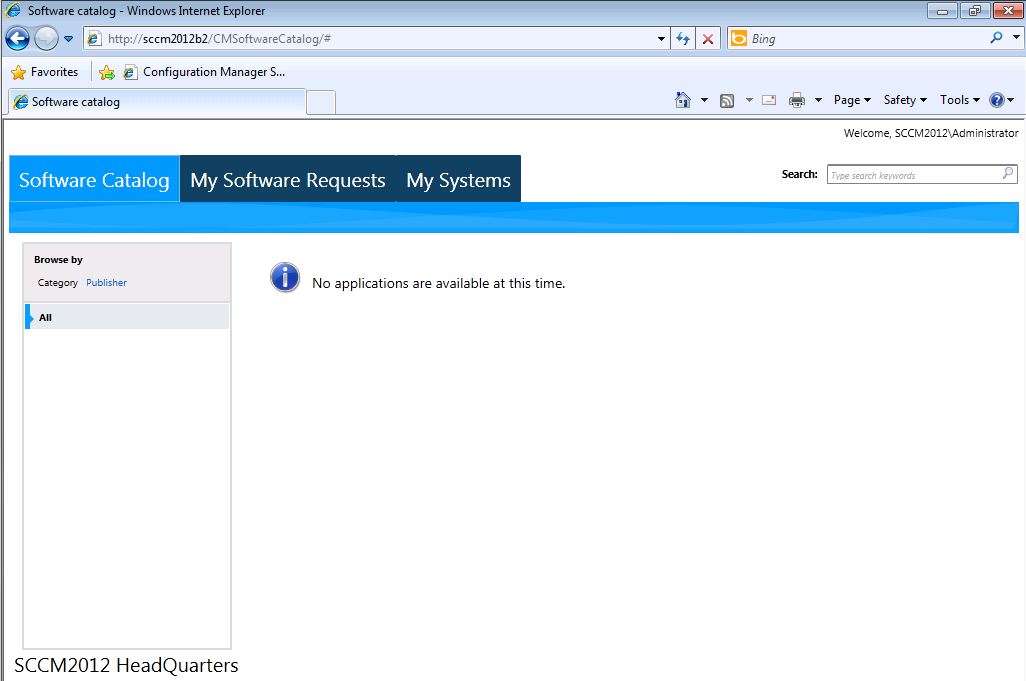
Now we got the Application Catalog Website up and running!

Application Catalog Website
Still empty, but we will fill this up next time!

Deploy Applications in SCCM 2012 Beta 2

Hi,
Let's take a look at application deployment in ConfigMgr 2012 B2.
First of all, things have changed. And for the better.
In SCCM 2007 an user would get his/her software mandatory (pushed) or published via RAP (Run Advertised Programs) or Add/Remove Programs, both found in the Control Panel. For most system administrators and users this was not so nice.
Now we still have the possibility of pushing out software, but the RAP is gone.
Actually it is not gone but replaced with something smarter, the Software Center.
So how dows this work?
  1. Create Application
    In order to deploy anything we first have to create an application. 

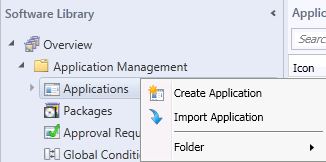
    Create Application SCCM2012B2
    Create Application SCCM2012 Beta 2
    With the application wizard we have a few options:
    - Windows Installer (Native) --> MSI
    - Microsoft Application Virtualization -- App-V
    - Windows Mobile Cabinet --> Windows Mobile
    - Nokia SIS/JAR --> Symbian sis/jar packages

    Application Wizard
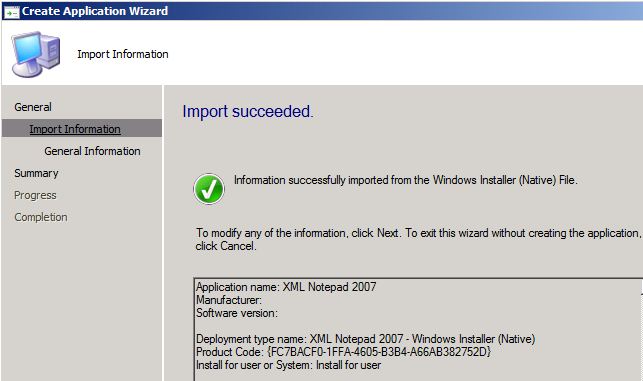
    Application Wizard step 1
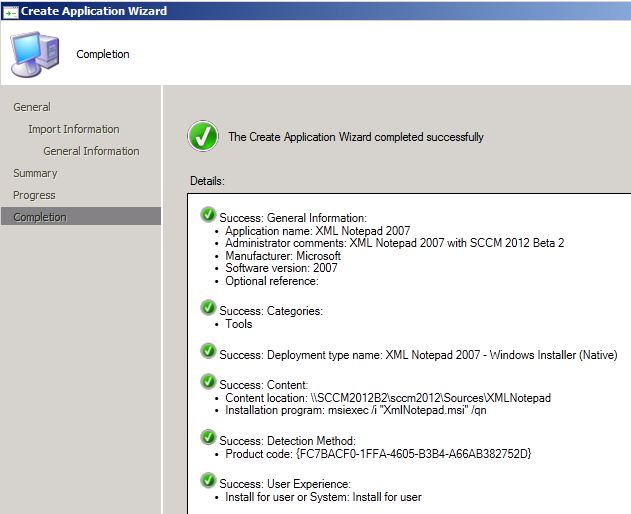
    The application is imported successfully.

    Application Wizard
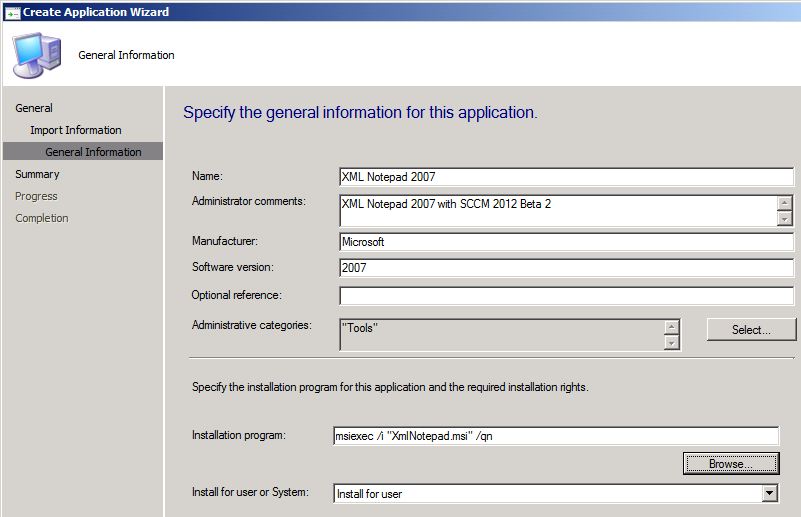
    Application Wizard step 2
    Continue with the wizard. I have created an Administrative category "Tools", will come in handy later ;-)

    Application Wizard
    Application Wizard step 3
    And there it is, our application:

    Application Wizard
    Application Wizard step 4

  2. Deploy the application.
    Let's deploy the application to a User Group. Nice because we set-up Active Directory with the needed Groups and now we want to use them.
    I have created a XMLNotepad collection which it filled with the Security Group XMLNotepad. 

    SCCM2012 Deploy Application
    SCCM2012 Deploy Application

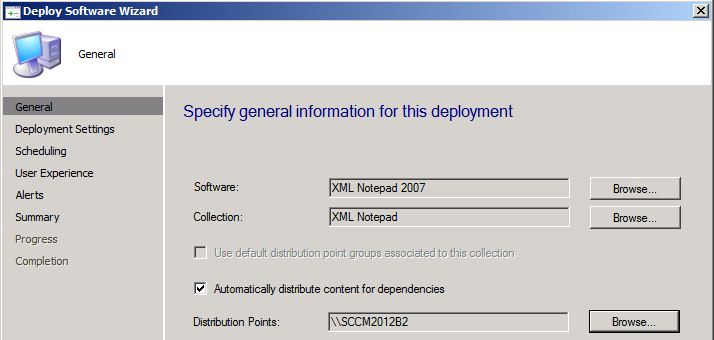
    Deploy Application
    Deploy Application Wizard
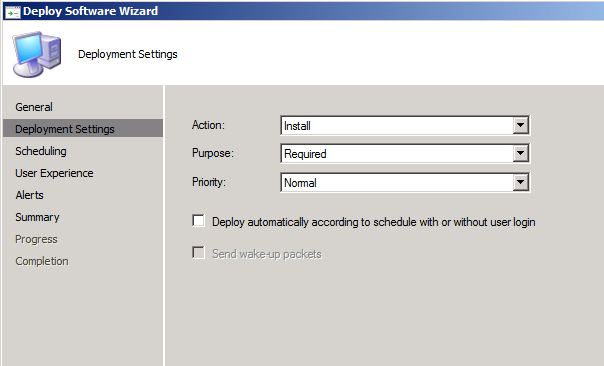
    This is where we set the Required or Available option, and whether to Install or Uninstall the application. Rather cool huh!

    Deploy Application Wizard
    Deploy Application Wizard

  3. See the action.
    Now log on to the client and see the Application delivery. 

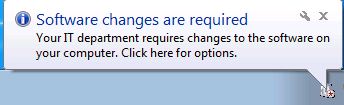
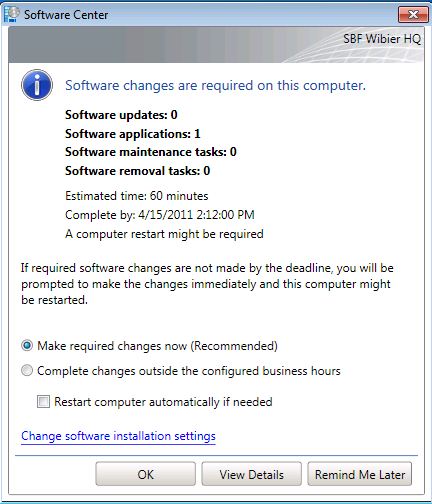
    Software Installation SCCM2012
    Software Installation SCCM2012

    Software Installation SCCM2012
    Software Installation SCCM2012

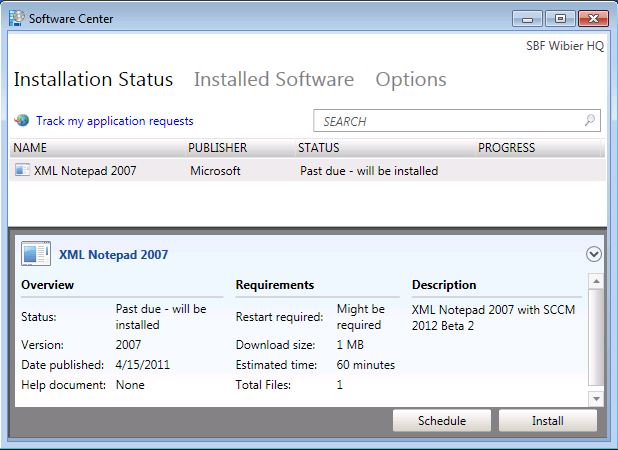
    Software Center
    Software Center
    So that's pretty cool and easy!